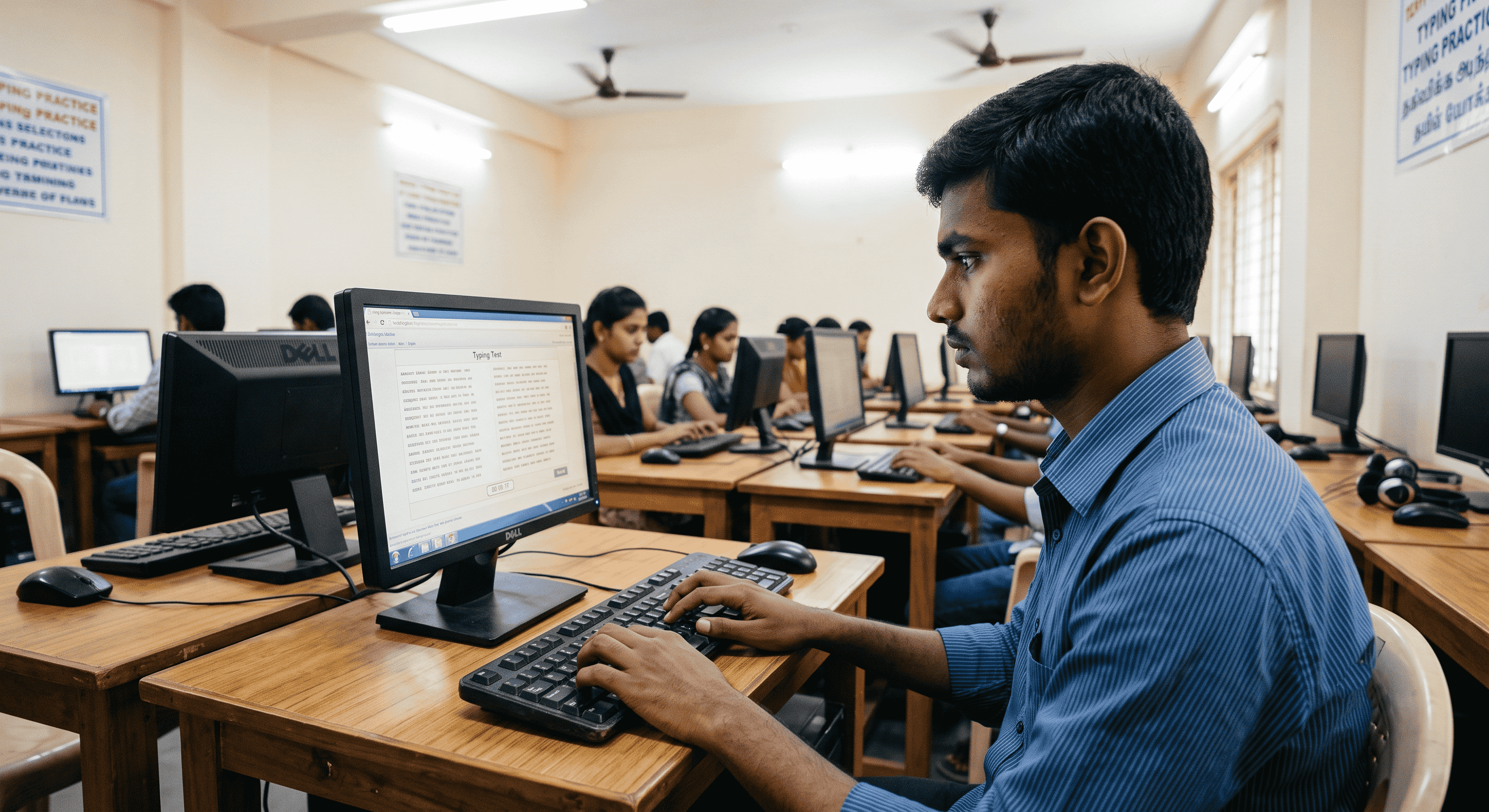
The Exam Hall Experience: How to Adapt to "Clunky" Keyboards
You have spent months perfecting your strokes. Your Shorthand Dictation is flawless, your Pitman Exercise transcriptions are on point, and your online typing speed on your sleek, modern laptop is clocking in at an impressive 50 words per minute. You feel entirely ready for your SSC Stenographer skill test. But when you finally sit down in the exam hall, panic sets in.
Instead of the smooth, flat keys you are used to, you are faced with a massive, high-profile desktop keyboard. The keys are stiff, the travel distance is huge, and every keystroke requires deliberate force. Within minutes, your fingers feel fatigued, and your Typing Speed plummets by 10 to 15 words per minute. This phenomenon, often called "keyboard shock," is a massive psychological and physical hurdle for Government Exam Preparation.
Whether you are preparing for an English Typing Test or tackling complex keystrokes in a Hindi Typing Test, adapting to the clunky hardware of government exam centers is just as important as memorizing your outlines. In this comprehensive guide, we will break down exactly how you can prepare your hands and your mind for the exam hall experience.
Why Hardware Adaptability Matters in Typing Exams
Government testing centers across the country accommodate thousands of candidates daily. For durability and cost-effectiveness, these centers use heavy-duty, standard membrane keyboards. These keyboards have high-profile keys, meaning they stick up significantly higher from the board and require more actuation force to register a keystroke compared to modern chiclet or laptop keyboards.
When your muscle memory is trained on a laptop, your fingers learn to glide across the keys with minimal lifting. If you try to glide on a clunky keyboard, your fingers will literally trip over the taller keys, leading to endless typos. Maintaining your Typing Accuracy on unfamiliar hardware requires a completely different physical approach.
The Benefits of Training on Exam-Style Keyboards
- Preserved Typing Speed: By mimicking the exam environment at home, you eliminate the adjustment period on test day, ensuring your speed remains consistent.
- Reduced Finger Fatigue: Training on stiff keys builds the necessary finger strength and stamina required for 10-minute continuous typing tests.
- Higher Typing Accuracy: You will learn exactly how much force is needed to register a key, reducing missed letters and double-typed characters.
- Psychological Confidence: Eliminating hardware surprises allows you to focus entirely on your transcription or typing copy, keeping exam anxiety at bay.
Step-by-Step Guide to Adapting Your Typing Style
Step 1: Ditch the Laptop Keyboard
The single most important step in your Government Exam Preparation is to stop using your laptop keyboard for practice. Go to a local electronics store or shop online for a basic, wired, high-profile membrane keyboard. Look for standard brands often used in offices, such as standard Acer, Dell, or Logitech desktop models. Do not buy a high-end mechanical gaming keyboard; they are too responsive and do not accurately simulate the stiff, mushy feel of older exam center hardware.
Step 2: Adjust Your Hand Posture
Because the keys are taller, resting your wrists flat on the desk will force your fingers to reach upwards at an uncomfortable angle, causing strain. Elevate your wrists slightly above the keyboard so your fingers strike downwards onto the keys. Imagine you are playing a piano. This top-down striking method provides more force with less effort.
Step 3: Practice Deliberate Striking
Laptop keyboards require a gentle tap. Exam keyboards require a firm press. As you engage in Online Typing Practice on Free Shorthand Typing, consciously press each key down until you feel it bottom out. It will sound louder and feel more aggressive, but this deliberate striking is the only way to ensure every letter registers.
Step 4: Simulate the Software Interface
Hardware is only half the battle; the testing software itself can be rigid. When preparing for specific tests like the Allahabad High Court Formatting exam, you must adapt to clunky user interfaces alongside clunky keyboards. Test interfaces often feature very specific UI elements, such as individual, separate scroll bars for different text panes that are sometimes designed to be much thinner than modern web browsers. Navigating these thin scroll bars with a cheap exam hall mouse while trying to keep your place in the text requires patience. Practice navigating outdated interfaces without losing your focus on the keyboard.
Practical Examples of Hardware Hurdles
The Hindi Typing Alt Code Challenge
Adapting to stiff keyboards is particularly critical for candidates taking a Hindi Typing Test. If you are practicing Kruti Dev Typing, you already know how heavily the layout relies on Alt codes for special characters. Striking the Alt key in rapid synchronization with the numeric keypad requires precise timing. On a clunky keyboard, a soft or rushed press might cause you to miss a digit.
For instance, generating complex characters like a "Half La", "Kra", or "D-dha" requires flawless Alt code execution. If your finger slips off the tall keys of the number pad, you will end up with the wrong character entirely, which can cascade into multiple errors if you don't catch it immediately. Conversely, if you use Mangal Typing (Inscript), the layout might not rely on Alt codes as much, but the shift-state keys still require firm, simultaneous keystrokes that are easily botched on stiff hardware.
The Pitman Shorthand Transcription Phase
When transcribing a Pitman Shorthand dictation, your eyes should be glued to your notebook, not the screen. If you are not confident in the tactile feedback of a high-profile keyboard, you will find yourself constantly looking up to verify that a stiff key actually registered. This constant looking back and forth ruins your rhythm and drains precious time.
Common Mistakes Aspirants Make
- Practicing Exclusively on Laptops: This is a guaranteed way to drop 10-15 WPM on exam day.
- Using Mechanical Gaming Keyboards: While tactile, the switches in gaming keyboards are far superior to exam hall membrane keyboards and create a false sense of security.
- Ignoring the Spacebar: On old keyboards, hitting the spacebar near the edges might not register. Train yourself to strike the spacebar dead in the center with your thumb.
- Relying heavily on Backspace: Clunky keys slow down your correction speed. It is much better to type a bit slower with high Typing Accuracy than to type fast and fight a stiff backspace key.
Keyboard Comparison: What to Expect
| Feature | Your Laptop Keyboard | Exam Hall Desktop Keyboard |
|---|---|---|
| Key Height | Low-profile, flat (Chiclet style) | High-profile, tall keys |
| Actuation Force | Light touch (approx. 45g - 50g) | Heavy press (approx. 60g - 70g+) |
| Travel Distance | Short (1mm - 2mm) | Long (3mm - 4mm) |
| Key Spacing | Compact, minimal gaps | Standard desktop spacing, larger gaps |
| Typing Technique | Gliding across keys | Lifting and striking downward |
Frequently Asked Questions (FAQ)
1. What kind of keyboards are used in the SSC Stenographer Skill Test?
Most centers use standard, wired, high-profile membrane keyboards from brands like Acer, Dell, Lenovo, or TVS. They are built for durability, not typing speed.
2. Can I bring my own keyboard to the typing test?
No. Government exam centers strictly prohibit bringing personal electronic devices, including keyboards and mice, due to security and fairness protocols.
3. How long does it take to adapt to a high-profile desktop keyboard?
If you practice consistently for 1-2 hours a day, it typically takes about 7 to 10 days to rebuild your muscle memory and regain your original laptop typing speed.
4. My fingers hurt after typing on a desktop keyboard. What should I do?
This is common when transitioning. Ensure your wrists are elevated and not resting flat on the table. Take frequent breaks and stretch your fingers to build stamina gradually.
5. Is a mechanical keyboard good for typing test practice?
Not really. While excellent for general typing, mechanical keyboards have consistent, smooth switches. Exam membrane keyboards are often stiff or mushy. A cheap $10 standard office keyboard is a better simulation.
6. How do clunky keyboards affect Kruti Dev Typing?
Because Kruti Dev relies heavily on Alt codes for special characters (like Half La or Kra), a stiff keyboard can cause you to miss a number pad keystroke, resulting in a completely different character appearing on screen.
7. Does Free Shorthand Typing provide exam-like software interfaces?
Yes, practicing on Free Shorthand Typing helps simulate the exact parameters of government skill tests, allowing you to focus on your hardware adaptation while we handle the software simulation.
8. Should I practice looking at the keyboard?
Absolutely not. Whether transcribing Pitman Shorthand or doing a standard Typing Test, always practice touch typing. Looking down breaks your concentration and destroys your speed.
Conclusion
The exam hall environment is designed to test your resilience just as much as your skills. Transitioning from the comfort of a smooth laptop to the harsh reality of a clunky, high-profile desktop keyboard is a mandatory step in your Government Exam Preparation. By understanding the physical differences, adjusting your typing posture, and simulating the exact hardware and software conditions at home, you insulate yourself against "keyboard shock."
Remember, the goal is not just raw speed; it is robust, adaptable speed combined with pinpoint Typing Accuracy, no matter what hardware you are handed on test day.
Ready to test your skills on the right hardware?
Plug in your standard desktop keyboard, sit up straight, and put your preparation to the test.
Start Your Free Online Typing Practice Today at Free Shorthand Typing!
Popular Tags:
- Typing Speed
- Exam Preparation
- SSC Stenographer
- Keyboard Tips
- Typing Accuracy
- Government Jobs
- Court Stenographer
- Typing Practice
- Hindi Typing
- English Typing
- Kruti Dev
- Mangal Unicode
- Shorthand
- Skill Test
- Typing Hardware
- Membrane Keyboards
- Desktop Typing
- Exam Hall Experience
- Typing Strategy
- Typing Mistakes